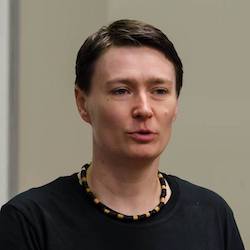
Hello I’m Georgiana. Geek, mother, do-er.
Living in beautiful Veldhoven, Noord-Brabant with my amazing 12 year-old son George.
23 years on the tech scene
Delivering business value at the right time for two decades.
Delivered well-crafted, scalable, resilient software across travel, real-estate, shopping, and semiconductor industries
From the Romanian funda.nl, comparison shopping portals, to revamping internal and public-facing software of a US airline company, numerous on-prem AI projects, and more recently chip manufacturing industry, I bring passion, competence, and expertise to deliver the right product on time in the market to solve the right business needs.
Sharing my expertise as a conference speaker and mentor
I know how hard it is to continuously learn and improve yourself while living a meaningful life outside work.
Started sharing knowledge in the conference circuit brought me new friends and a lot of inner value. Soon after I started mentoring junior engineers remotely for a career path that fulfills them.
Brought hands-on workshops to companies to solve their ever-growing learning needs.
Reach out for more details.